
Browser Automation Without an API: Turning Spreadsheets into Automated Web Tasks
How EasyAgent, a free Chrome extension, records a click-and-fill workflow once and replays it against every row of a spreadsheet — no API, no bulk-import tool, and no code.
A surprising amount of work in digital operations still involves doing the same thing in a browser over and over again.
Open a page. Click a button. Enter some data. Select an option. Save it. Move on to the next item.
If you need to do that once, it isn't a problem. If you need to do it 50, 100 or 500 times, it becomes a very different story.
I built EasyAgent, a Chrome extension designed to automate exactly this type of work. It records the actions you take in a browser and allows those actions to be replayed using data from a spreadsheet.
The idea is simple: do the task once, then let the browser repeat it for you.
The problem with repetitive browser work
A lot of web applications don't provide a convenient way to make bulk changes.
You might have a CMS with no bulk import. An admin system with no API. An internal tool where you need to update records individually. Or a form that needs to be completed with different information for every customer, product or item.
The usual solution is to copy and paste the information from Excel, complete the form, submit it, and then start again. It works, but it is slow and surprisingly easy to get wrong.
Even something as simple as updating 100 records can involve hundreds of clicks and thousands of keystrokes. This is where browser automation can be useful.
Record the task once
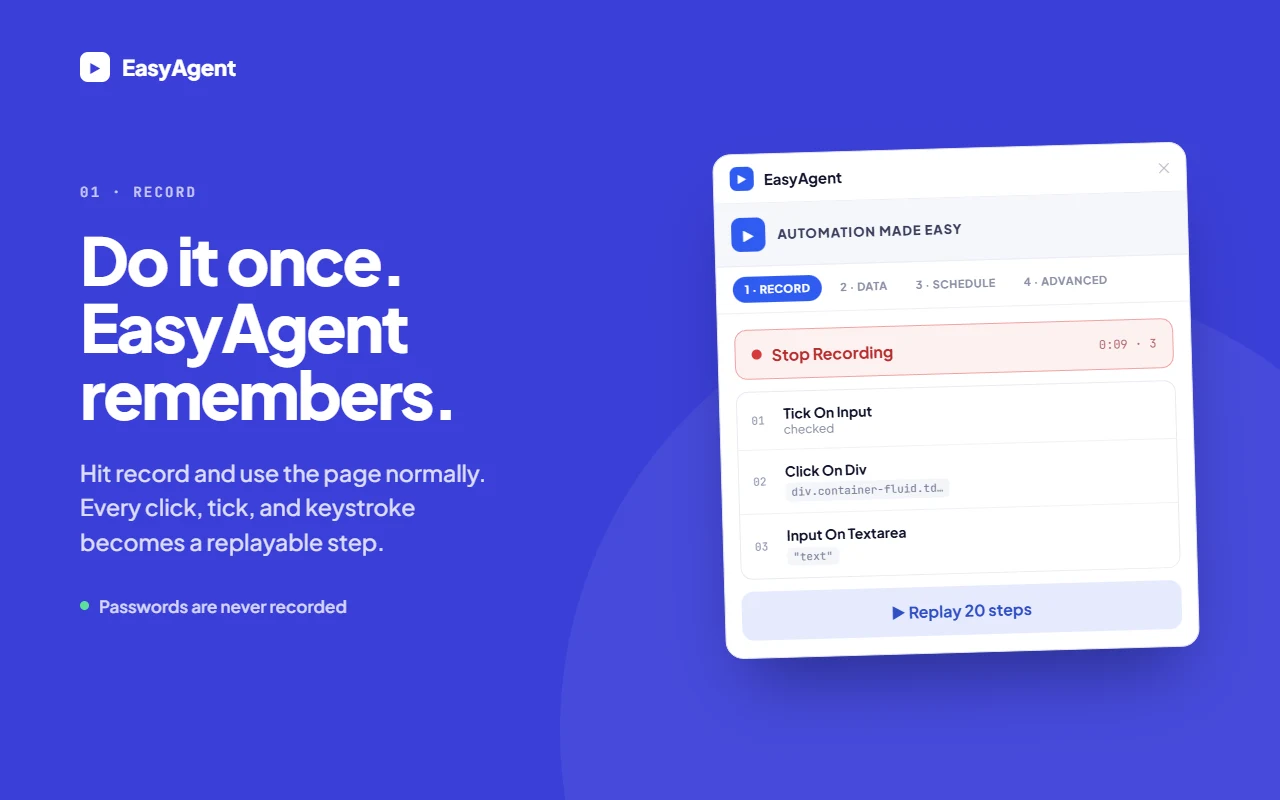
EasyAgent works by recording what you do in the browser. Start a new recording and then use the website normally. For example, you might:
- Open an admin page
- Click "Edit"
- Enter a product name
- Change a category
- Select a checkbox
- Click Save
EasyAgent records those actions as a sequence. Importantly, it records the whole process rather than just the values you type. Clicks, form entries, checkboxes, radio buttons and other actions are captured in order.
So if your process involves clicking through several pages or opening a new tab, that can become part of the recording too. Once the recording is complete, you can replay it.
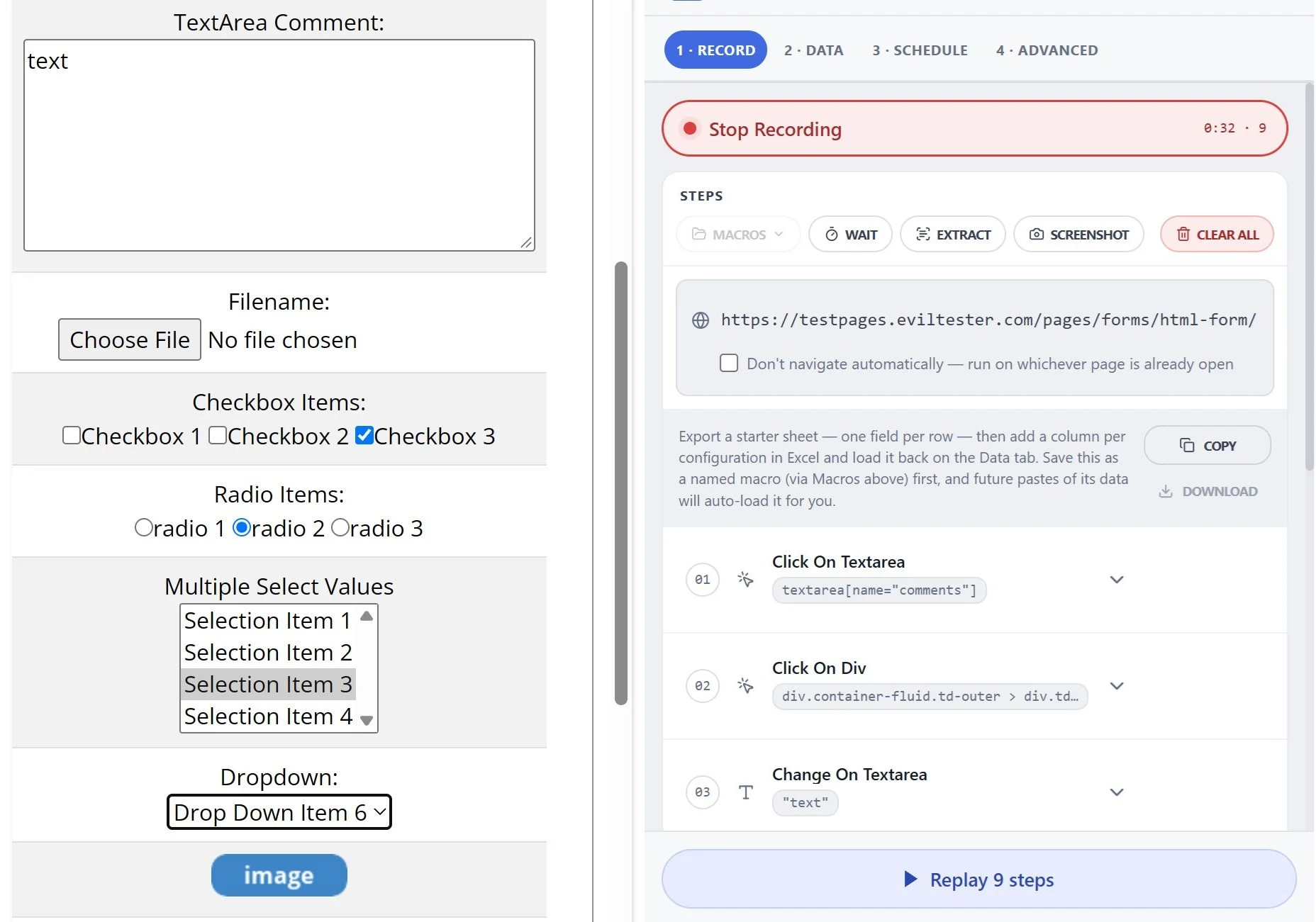
Turn the recording into a spreadsheet-driven workflow
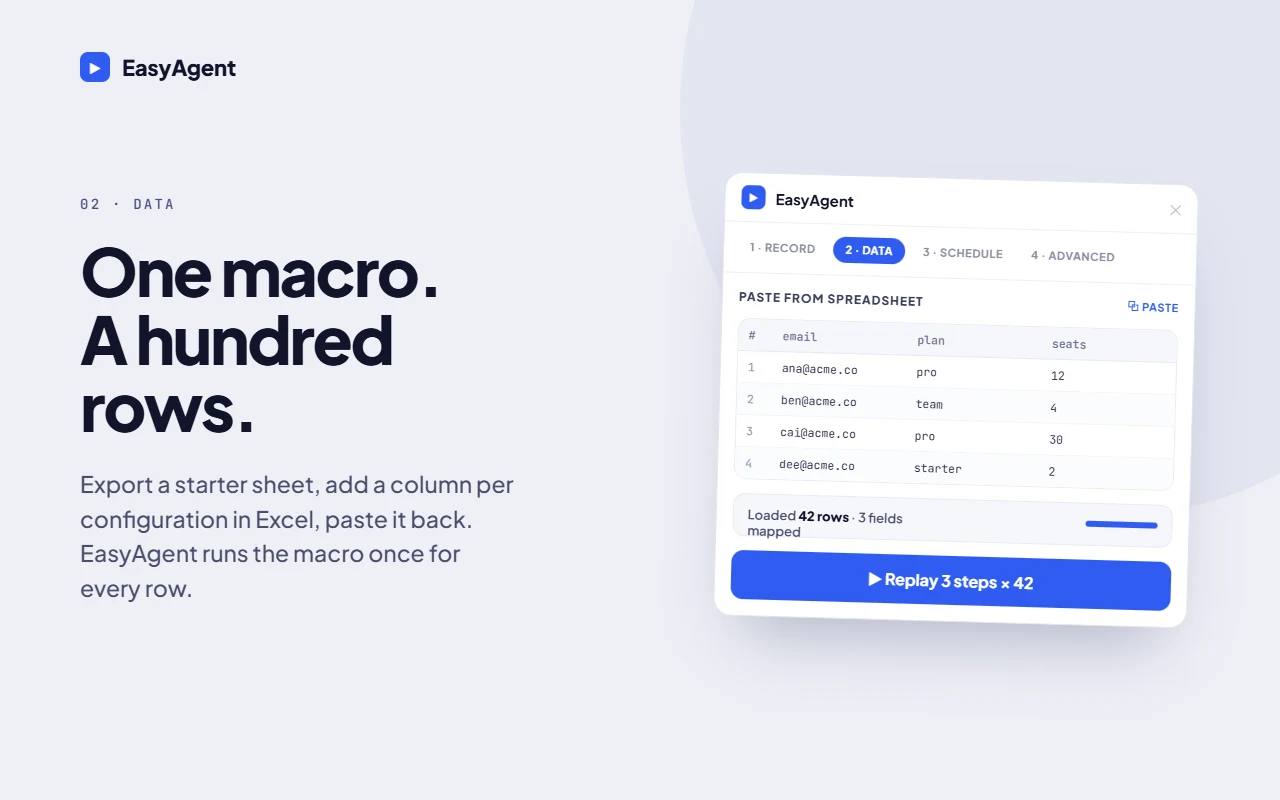
This is where things get more interesting. Instead of replaying exactly what you originally typed, you can bind individual recorded steps to columns in a spreadsheet.
Imagine you have:
| Game | Category | RTP | Feature Buy |
|---|---|---|---|
| Game A | Slots | 96.2% | Yes |
| Game B | Slots | 95.8% | No |
| Game C | Jackpots | 96.5% | Yes |
You could record the process of updating one game in your CMS and then tell EasyAgent:
Game name → Game column
Category → Category column
RTP → RTP column
Feature Buy → Feature Buy column
EasyAgent can then replay the same process for each row. The spreadsheet becomes the data source, while the recording becomes the workflow.
Instead of manually entering three games, you've created a reusable browser automation. With hundreds of rows, the difference becomes much more significant.
It doesn't need an API
One of the reasons I built EasyAgent is that there are plenty of systems where you would love to automate something, but there is no API available.
Or perhaps there is an API, but getting access to it would involve development work, authentication, documentation and a much bigger project than the task really deserves.
EasyAgent takes a different approach. If you can perform the task through the website, you can potentially automate it through the browser. That means it can be useful for:
- CMS platforms
- Admin panels
- CRMs
- Ecommerce back-ends
- Internal dashboards
- Data entry systems
- QA and testing
- Other web applications without bulk tools or APIs
The important distinction is that you're automating the existing browser workflow rather than trying to build a new integration.
You can change the starting URL too
Not every row of data necessarily lives on the same page. For example, you might have an admin system where every product has its own URL: /products/12345, /products/12346, /products/12347.
EasyAgent allows the starting URL itself to be linked to spreadsheet data. So instead of running the same recording against one page repeatedly, each row can take you to its own destination before the recorded actions are carried out.
This is particularly useful for admin systems where you need to make the same change across lots of individual records.
Test it before running everything
Running an automation against 500 rows without checking it first probably isn't a great idea. That's why EasyAgent includes a Dry Run option.
You can run the automation against the first row, watch what happens and make sure the recording is doing exactly what you expect. Once you're happy with it, you can execute the workflow across the rest of the spreadsheet.
There is also a live progress log while the automation is running, so you can see what it is doing.
Get information back out
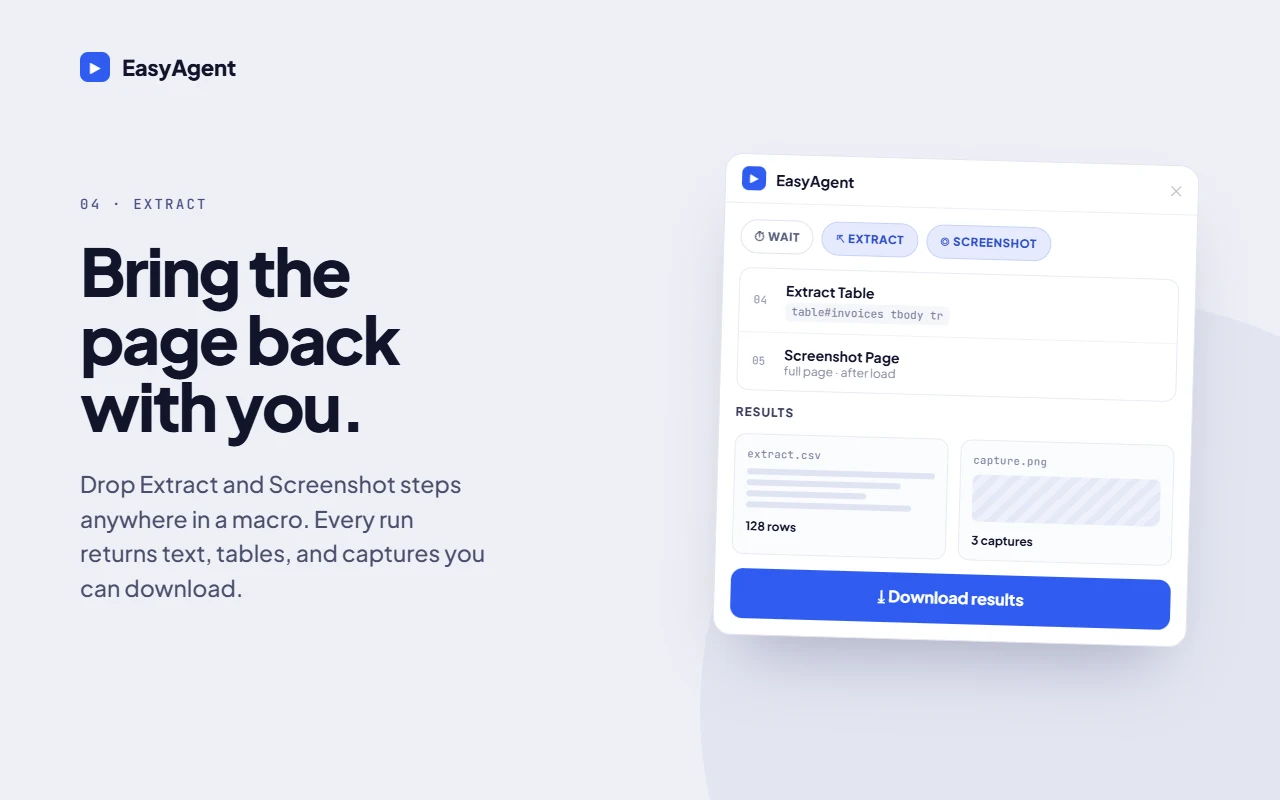
Browser automation doesn't have to be one-way. EasyAgent can also extract information from the page.
For example, imagine your workflow submits a form and the website returns a confirmation number. Rather than simply watching the browser do its thing, you can tell EasyAgent to capture that value. The results can then be downloaded as spreadsheet data.
This opens up another type of workflow: spreadsheet → browser → spreadsheet. You provide the input data, EasyAgent performs the task, and the results can be captured and returned to you.
Run it on a schedule
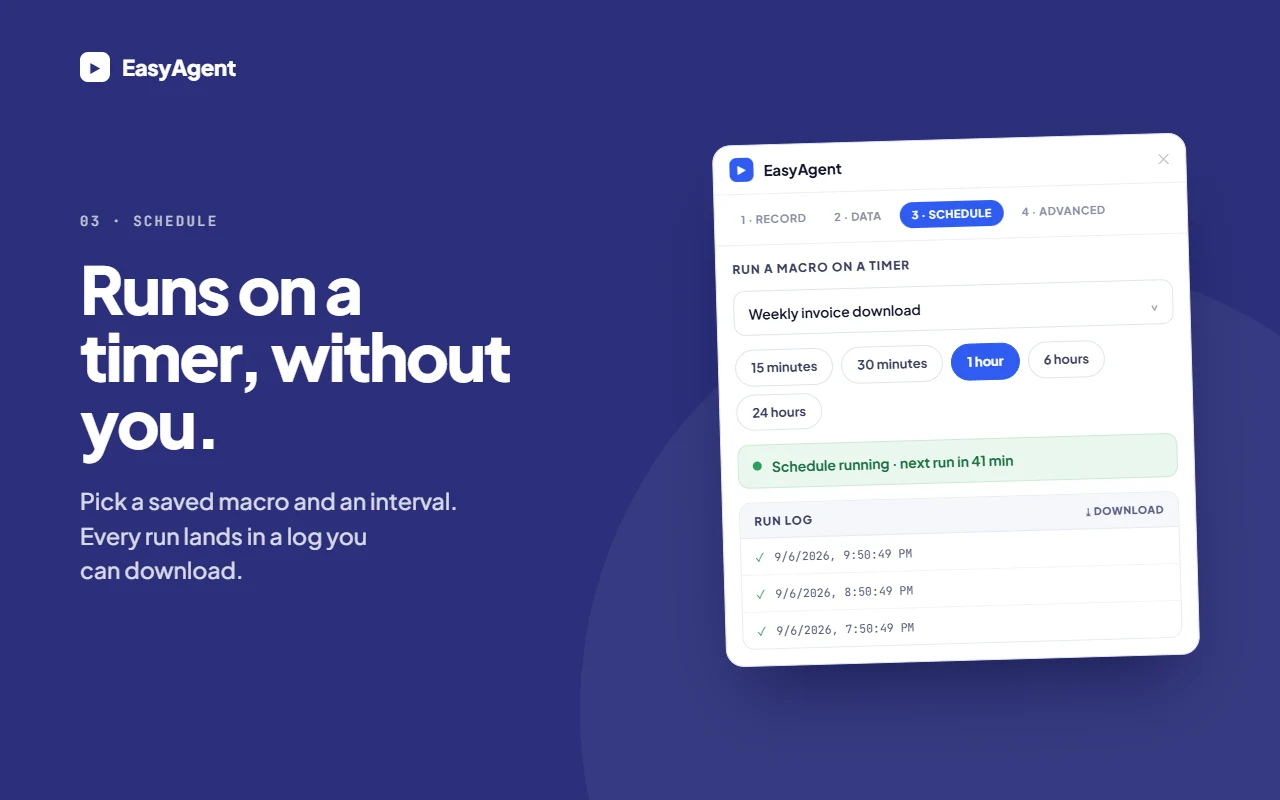
Some browser tasks aren't something you need to do once. You might need to check something every hour, every 15 minutes, or once a day.
Saved EasyAgent recordings can also be run on a schedule, with recurring intervals from 15 minutes through to 24 hours. That means a recording can become a simple recurring browser check rather than something you have to manually start each time.
See what happened
Automation is only useful if you can work out what happened when something goes wrong. EasyAgent can take screenshots during a workflow, allowing you to capture a specific area of the page. It also automatically captures a screenshot when a step fails.
This can make troubleshooting much easier, particularly when you're running a workflow across a large number of rows. Instead of simply seeing that row 147 failed, you can have a visual indication of what the browser was showing when it happened.
Making spreadsheet mapping easier
One of the more complicated parts of browser automation is figuring out exactly which recorded action should use which spreadsheet column. That's why I built a separate EasyAgent helper page.
The helper makes it easier to take the fields from your recording, match them against your Excel or CSV data and create the data structure needed by the extension.
The basic process is: record the task → prepare your spreadsheet → map the fields → copy the data into EasyAgent → run the automation.
You don't need to write a script or understand how browser automation works under the hood. You are essentially telling the recording which parts of your spreadsheet should replace the values that were captured during the original recording.
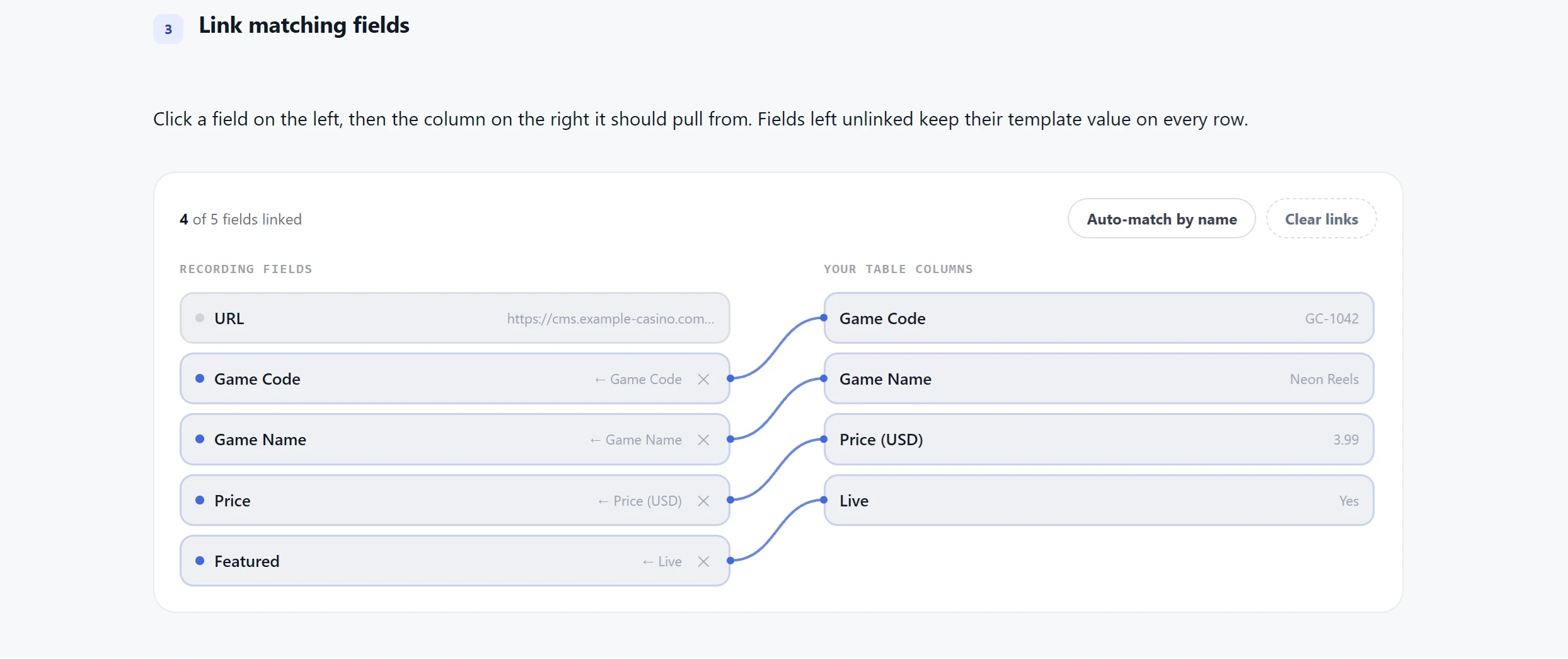
A practical example
Let's say you have 200 products that need to be updated in an admin system. Normally, you might open each product, change three fields, save it and move onto the next one. At 200 products, that becomes a fairly significant manual task.
With EasyAgent, the workflow could look like this:
- Prepare your Excel spreadsheet.
- Record yourself updating one product.
- Map the recorded fields to the appropriate spreadsheet columns.
- Run a dry run against the first row.
- Check that everything looks correct.
- Execute the automation across the remaining rows.
The website hasn't changed. The admin system hasn't needed an API. You haven't needed to write a script. You've simply taught the browser how to perform the task once and supplied it with the data it needs to repeat it.
Why I built it
EasyAgent came from a fairly simple observation: there are a lot of tasks that are too repetitive to do manually, but too specific to justify building a full integration for.
APIs are great when they exist. Bulk imports are great when a system supports them. But there is a large gap in between — sometimes you just need to automate the same five or ten browser actions 100 times.
I've worked on plenty of operational processes where the actual task isn't particularly complicated. The problem is the amount of repetition involved. That is the problem EasyAgent is designed to solve.
Rather than building a one-off script every time a repetitive browser task comes up, you can record the process and reuse it.
What happens to your data?
EasyAgent is designed to run locally in the browser. Recorded steps and loaded spreadsheet data are stored in the extension's local browser storage rather than being sent to an external service.
Screenshots are saved as ordinary files in your Downloads folder. Password fields are also not recorded with their values.
For anyone working with internal admin systems or operational data, keeping the automation local is an important part of the design.
Browser automation doesn't have to be complicated
When people hear "automation", they often think about APIs, Python scripts, RPA platforms or complicated integrations. Those tools all have their place.
But sometimes the simplest automation is the most useful. If the process already works manually, you don't necessarily need to rebuild the entire system. You can just automate the repetitive part.
Record it. Map it. Test it. Run it. That's essentially what EasyAgent does.
Try EasyAgent
If you regularly find yourself thinking "there must be a quicker way to do this" while clicking through the same web pages, EasyAgent is designed for exactly that kind of problem.
The extension is free to use, and I'm continuing to improve it based on the types of repetitive browser tasks it is useful for.
Sometimes you don't need an API. You just need the browser to do the boring bit for you.
Related posts
Why I Built My Own iMacros Alternative
Used iMacros to fill web forms for years? When it was discontinued, I built EasyAgent, a free browser macro recorder. Here's how I use it.
June 26, 2026How I Automated Casino Game Onboarding with AI and Custom Extensions
How a five-part automation pipeline — spanning AI-assisted configuration, OCR asset renaming, browser automation, and certificate processing — eliminated hours of weekly manual work and freed up time for higher-value strategic work.
September 26, 2026How to Present Casino Game Screenshots to Operators and Licensees
What operators and licensees look for in casino game screenshots, and how to capture, frame and structure them for a pitch that gets games live.